Image Block, Default Formatting, with Caption

Thumbnail, Aligned Right
We can take the same image and align it to the left or the right of a paragraph that it’s related to.
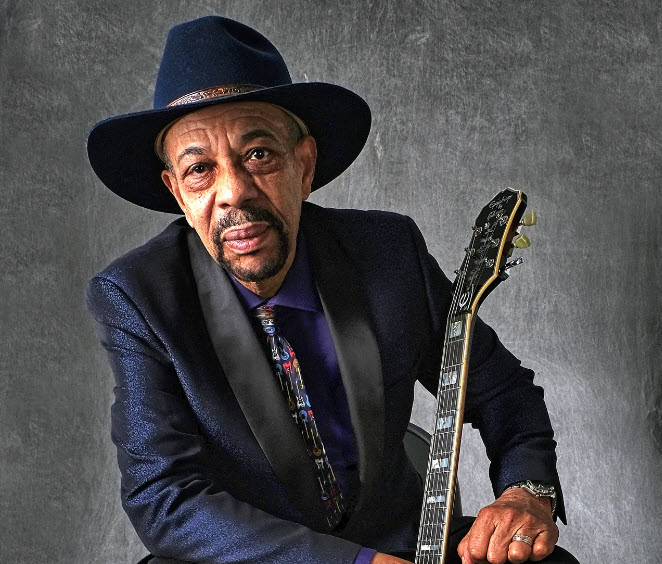
Typically, you would use either the square thumbnail version of the image (shown to the right) or the medium sized version (smaller, but with the original aspect ratio preserved by default).
Image with Filter, Rounded Corners
WordPress provides preset filters, and you can customize the filter colors and gradients. The rounded corners shown here are another standard format.
Media & Text Block
This block has the sole purpose of making it easier to present text side-by-side with a single image. You can switch between having the image on the right or the left and apply other effects such as the rounded border shown here.
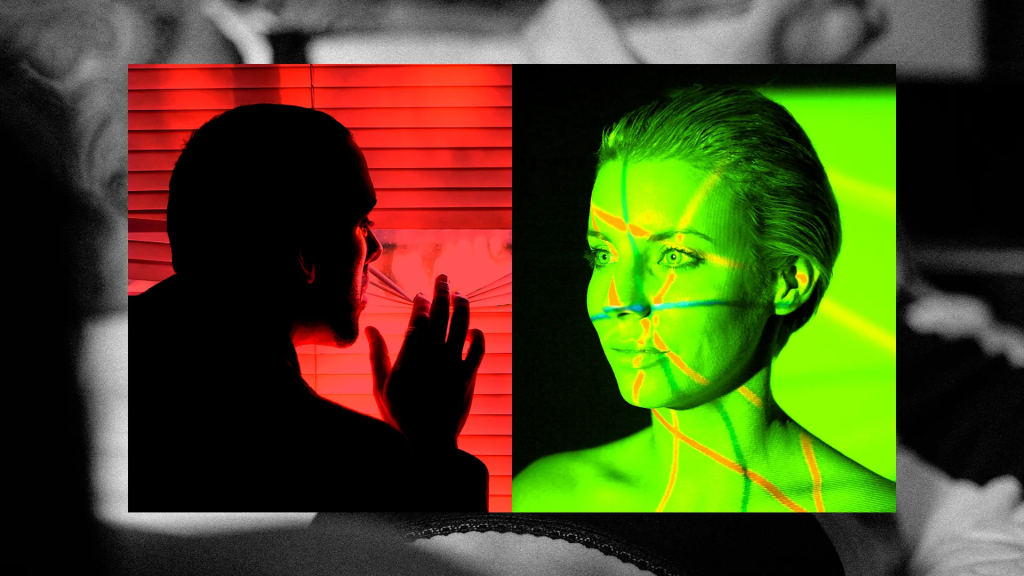
A study in contrasts
Basic Image Gallery
There are many plugins available that will give you a fancier image galleries, but WordPress provides a basic Gallery that’s fine for displaying a bunch of images in a grid.
Once you add the Gallery block, it will prompt you to upload photos or choose them from your Media Library (previously uploaded images). You can then edit the properties of the individual images (for example, I’ve made these all square) as well as the Gallery block that contains them (I’ve changed the background color and added a border).










Cover Block Example
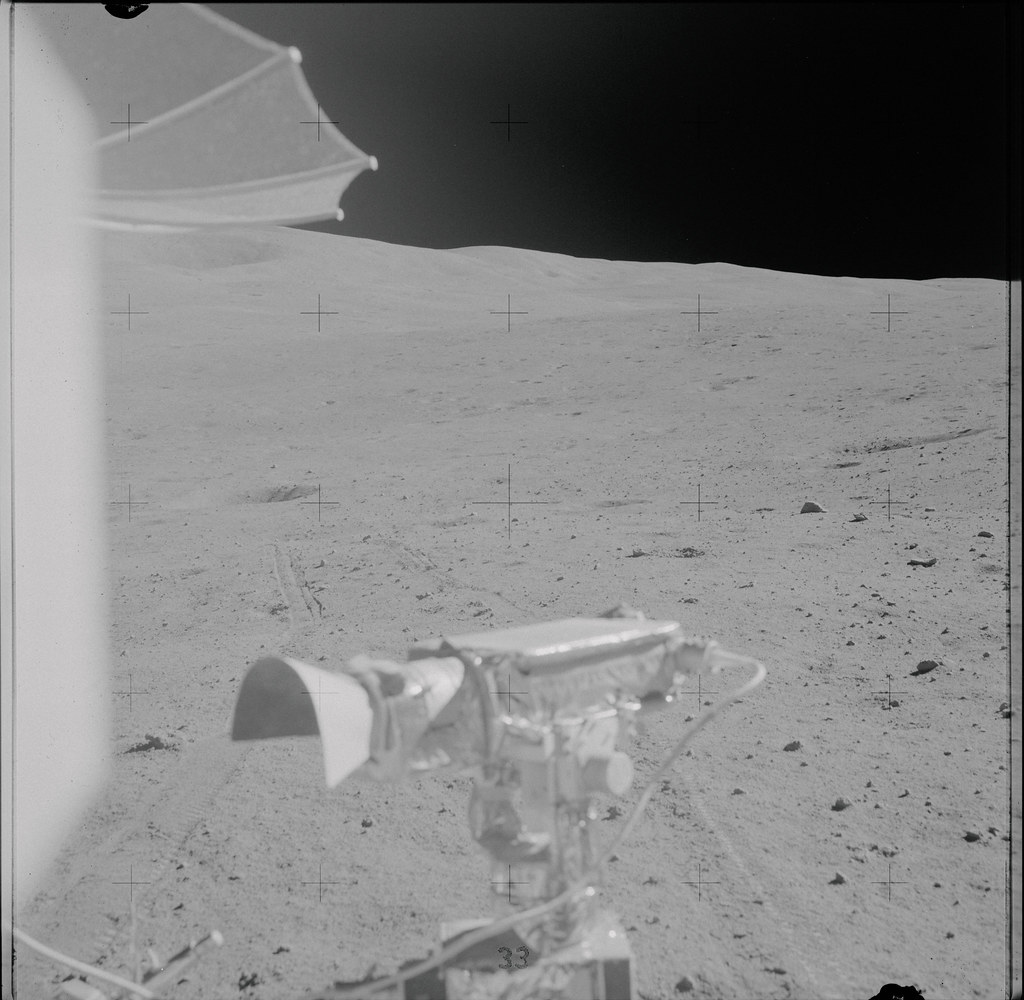
The Cover block displays your selected image in the background, with your headline text or other content super-imposed on top of it. In this example, I’ve also changed the width beyond the default content area.
This could be a good dramatic presentation to include at the top of a page announcing a special program.

VTM CON 2025
Using Patterns: Pre-Defined Layouts with Placeholder Images and Other Content
You have access to pre-defined professional layouts you can customize, and in some cases the Toastmost version of these includes standard images from the Toastmost brand library. You can replace the images with your own images and the text with your messages, but these “Patterns” give you a head start.

1. Through Toastmasters, we aspire to redefine architectural boundaries and usher in a new era of design excellence that leaves an indelible mark on the built environment.

Our comprehensive suite of professional services caters to a diverse clientele, ranging from homeowners to commercial developers. With A commitment to excellence in public speaking and leadership, Toastmasters is the bridge that transforms architectural dreams into remarkable built realities.
2. Case studies that celebrate the artistry can fuel curiosity and ignite inspiration.

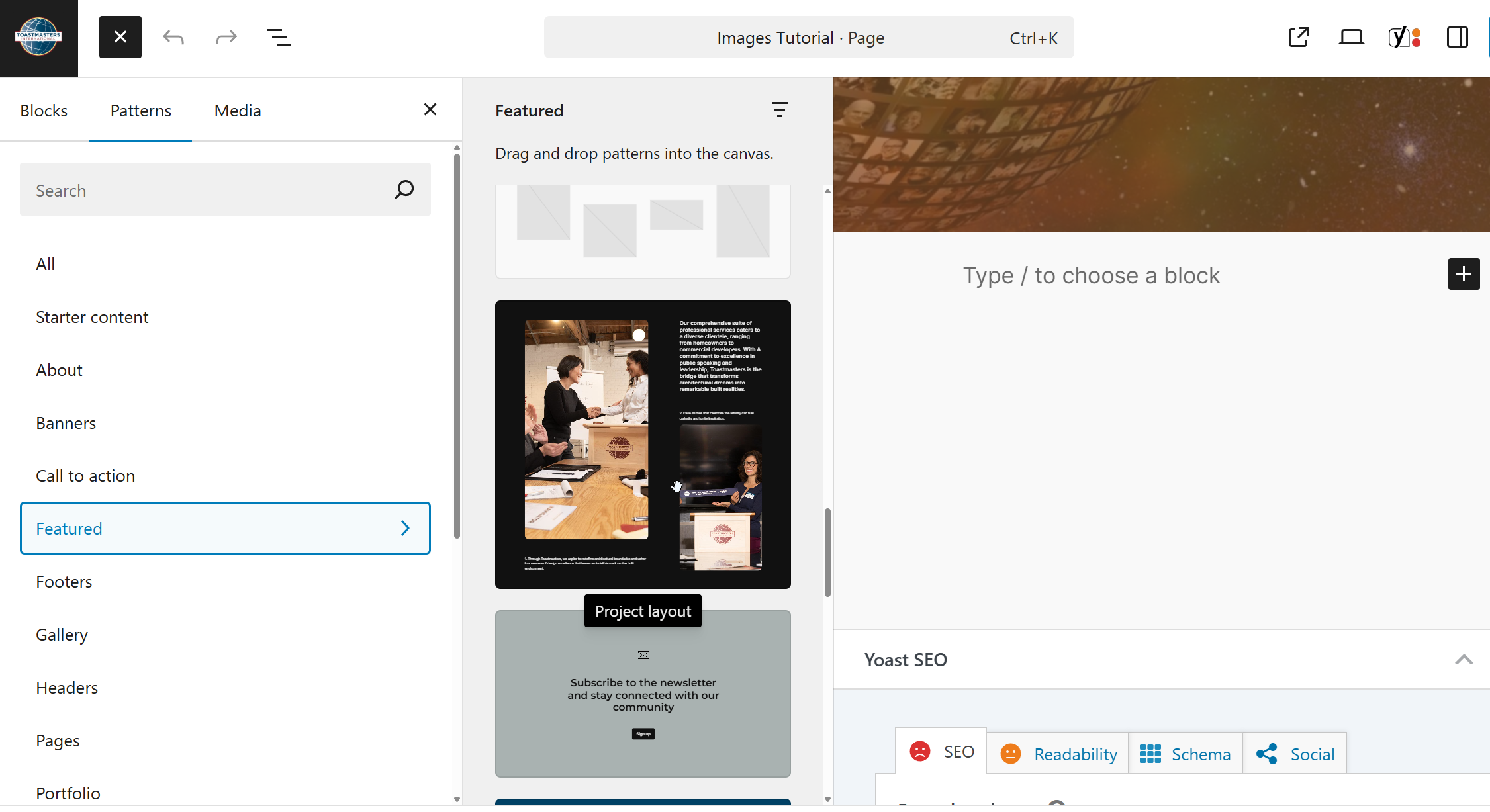
To insert patterns, click the + button in the upper left hand corner of the editor screen. Then choose the Patterns tab to see all the available options.